Corrective actions — user guide
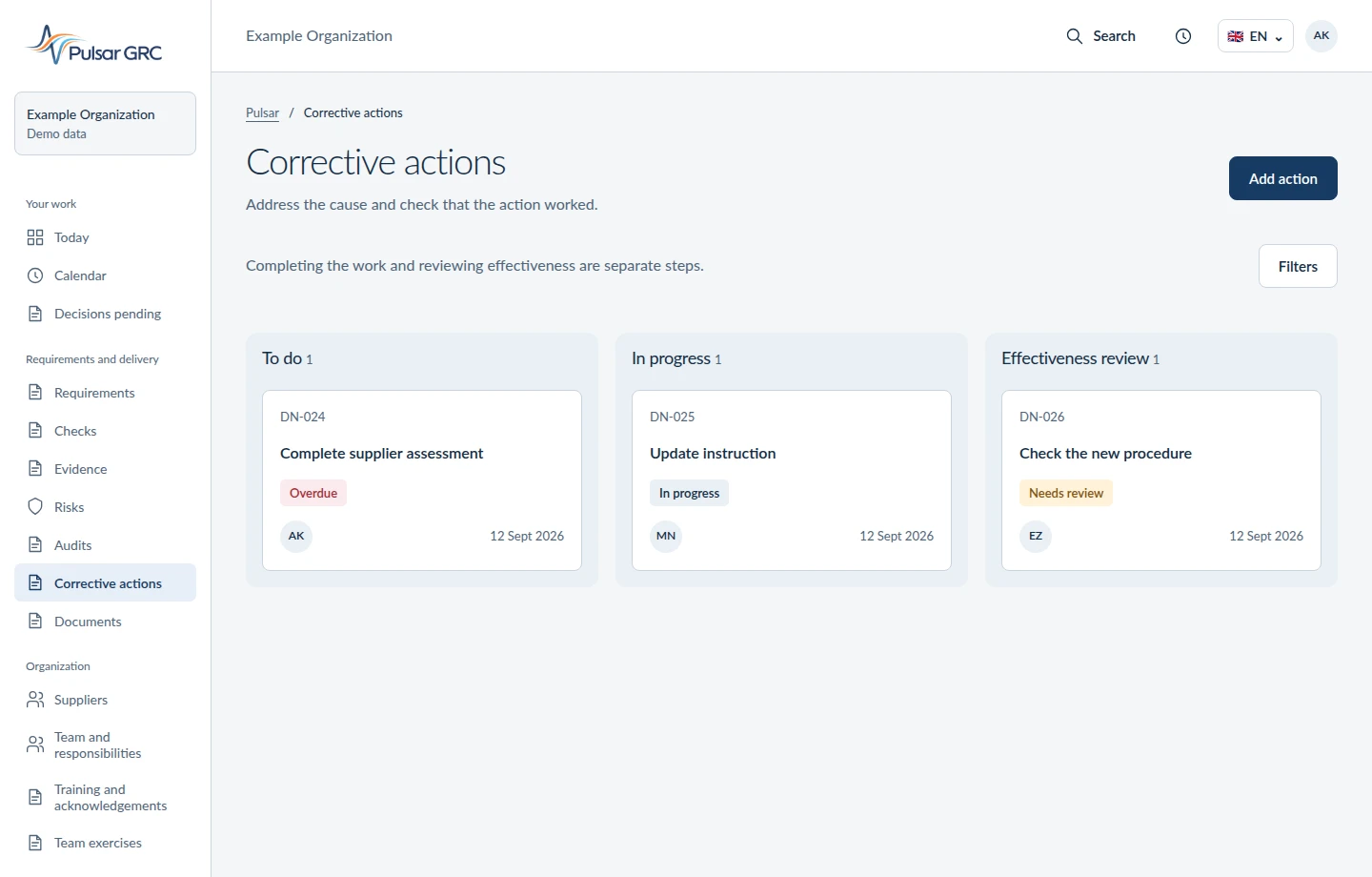
Address the cause and check that the action worked.
Last updated:
After a nonconformity, complaint or recurring problem.
Before you start
- Select the correct organization in the application and check access to this area. If it is unavailable, contact your organization administrator.
- Prepare information and documents for the specific case. Identify their scope and date and use approved source versions.
- Agree who carries out the work and who reviews the result. For people-related work, confirm access and the CrewShift workflow scope.
Follow these steps
- Open “Corrective actions” in the application navigation. Select the record or period relevant to your work.
- Record the problem and contain its effects.
- Verify the cause and agree an action, owner and deadline.
- Attach delivery evidence, then assess effectiveness against an agreed criterion.
- After making changes, save them using the available action. Reopen the record and check its scope, links and state. For a read-only view, check the underlying record.
Check the result
A trail from finding to closure, further observation or renewed analysis. Completion and effectiveness are assessed separately.
- Compare the record with the source document or finding. Do not assess completion from the status label alone.
- Check the responsible person, dates and material needed for the next step. Assign missing information before submitting the record for review.
If you cannot complete a step
- Missing area or save action: check your organization, permissions and plan scope with the administrator.
- Missing material or link: check the source document and selected version. Complete the information before treating the work as done.
- Result differs from the source: retain a description of the discrepancy and request review by the responsible person before approval.
Return to the module guide catalogue · Feature overview · Request help